
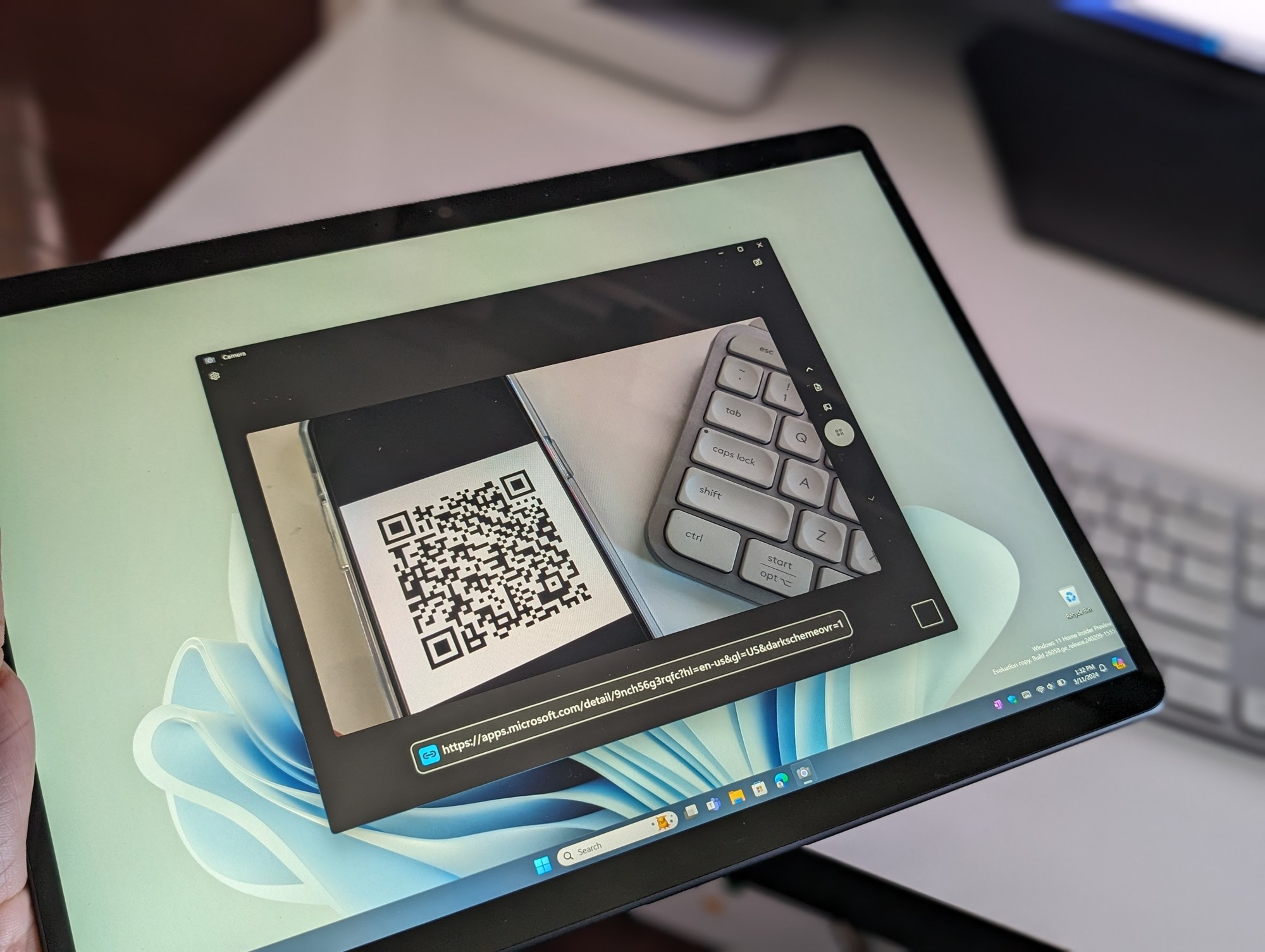
QR codes are becoming more and more prevalent in society these days, providing a quick and easy way to get to link to a webpage, or even share information like a Wi-Fi network. It has become common practice for a phone app to have the option to scan the information in a QR code, but what about a Windows PC or a tablet? Can Windows scan a QR code?
It sure can! You even can use a third-party app like Simple QR Code Maker to create your own QR code on Windows.
The Windows 11 Camera app has an option to scan a QR code without an extra software. Just search for Camera in the Windows 11 Start Menu and follow the steps below. There’s no need to download any files, and it’s quite simple.
- Launch the Windows 11 Camera App
- At the side of the app, press the down button, until you see an icon of a barcode in the shutter button.
- Hover your Windows tablet and camera over the QR code you want to scan. Or, bring the QR code up you your webcam.

- You’ll see the result of the scan as a URL in the bottom left corner of the application.
That was how you could scan a QR code in Windows, but if you want to generate a QR code, or open one saved on your device, you’ll need to try out Simple QR Code Maker from JoeFinApps. We’ve linked it below. This app is completely free, and will let you save a QR code as an image, open any saved QR code, or generate your own. Here’s how you can use it.
- Install Simple QR Code Maker from the Microsoft Store on Windows 10 or Windows 11 with the link below.
- To create a code for a URL, simply paste it in the text box at the top of the app. You can change the color or the QR code background by clicking in the empty white box in middle of the app. You also can change the density of the QR code with the percentages on the right side. Or, change the color of the QR code box itself with the icon to the left.

- When ready to save the QR code, click the down arrow next to Save As.
- If you want to read the code from a URL, select Read Codes then Open. You can then click on the QR code in the image, to open a pop-up box that has the link to whatever the QR code is leading to. Click the arrow to open the link.

There’s not much to using QR code on Windows. Reading codes with the camera is as simple as using the Windows Camera app, or using Simple QR Code Maker. You also can generate your own codes too. These methods are safe, and free, and won’t harm your PC at all, and will help you get the information you need!

 JoeFin Apps